Your screen. Your framing.
Keep native screen detail before cropping. Frame a window, drag sources into place, and add your camera when you want it. Record and pause right beside the preview.
 latitude.
OPEN SOURCE. OPEN FOR YOUR NEXT IDEA.
A screen recorder with an audio studio at its heart. Capture the moment. Bring your voice forward. Keep every track in your hands.
Windows beta · Linux preview · Mac development preview · v0.9.5 Easier naming. Less export waiting. Streaming + editing included.
01 / SOUND COMES FIRST
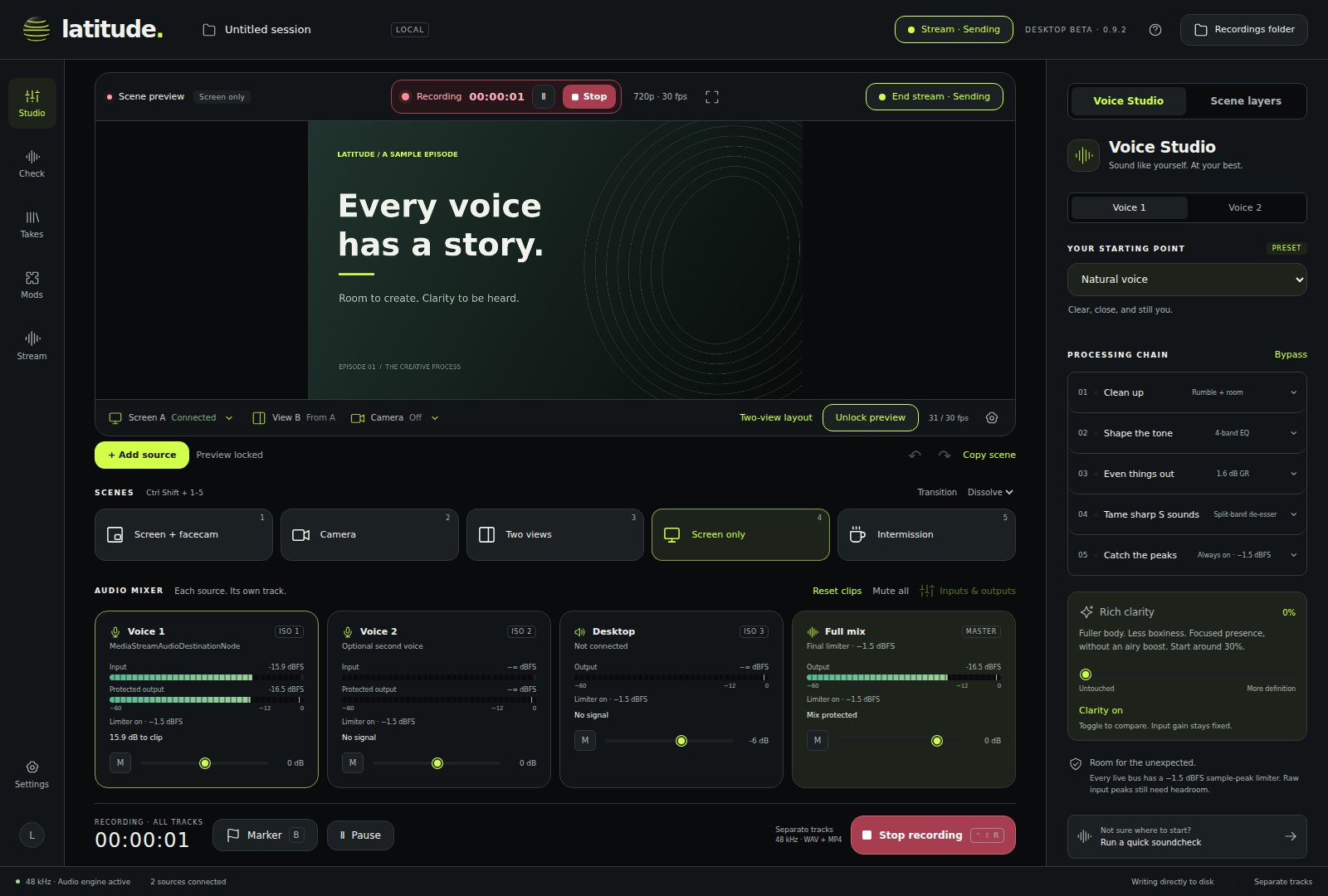
Good picture gets you noticed. Clear, comfortable sound keeps people listening. Latitude puts voice tools where you can actually use them.
Choose a preset like Natural voice or Podcast broadcast, run a short soundcheck, and fine-tune from there. Each microphone gets its own settings. Rumble filtering, gentle expansion, compression and focused de-essing are active from the start. The refined podcast preset keeps speech centered, with no added air.
Optional body and presence to keep voices up front. Dial it in, or leave your sound untouched.
Tame rumble and adjust tone with voice-focused EQ.
Compression helps quiet and loud phrases sit together.
De-essing helps control distracting “S” sounds.
Always-on limiters protect processed tracks. Separate input/output meters show headroom, with a red outline during input clipping.
Start with a healthy input level. Software cannot undo clipping that already happened in your microphone or interface.
02 / KEEP YOUR OPTIONS OPEN
Your microphone shouldn’t be stuck to your desktop audio. Keep them separate and synchronized, so the edit stays flexible.
Explore the export formatsEditing in CapCut? Keep separate audio tracks enabled. If your editor only reads the first embedded track, use Latitude’s synchronized WAV files or optional source-specific video copies.
03 / MAKE ROOM FOR THE PICTURE
Keep native screen detail before cropping. Frame a window, drag sources into place, and add your camera when you want it. Record and pause right beside the preview.
Move between scene presets with hotkeys and transitions. Put two sources side by side, add titles and graphics, or keep it screen-only.
Choose 30 or 60 fps, up to 4K, with a quality setting for your storage budget. Unchanged previews skip unnecessary drawing. Actual frame rate depends on your hardware.
04 / YOUR SPACE TO CREATE
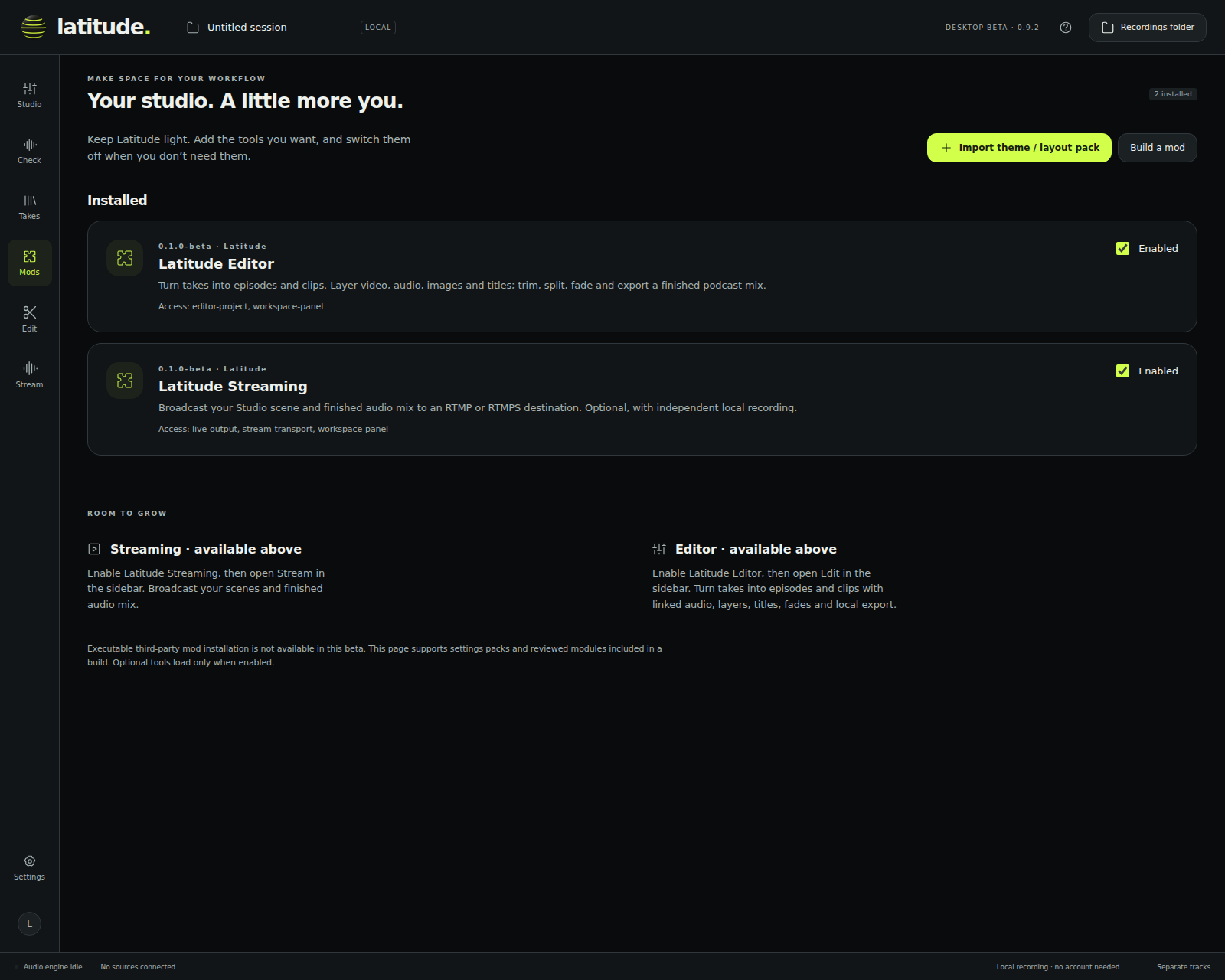
Import a theme or layout pack. Switch it on or off in Mods. Keep the scenes you already made.
Two official mods, one place to start. Latitude Streaming broadcasts your scenes and finished audio mix. Latitude Editor turns your takes into episodes and clips. Enable the tools you want in Mods; they get their own place in the sidebar.
Read the modding guide ↗Both included and off by default. Disabled modules stay unloaded. Executable third-party installation is not available yet; the source is open for community contributions.
THE FIRST OFFICIAL MOD / STREAMING BETA
Use your finished mix, scene presets, and preview. Stream on its own, or record a local take with separate tracks. One destination. Clear controls. No extra subscription.
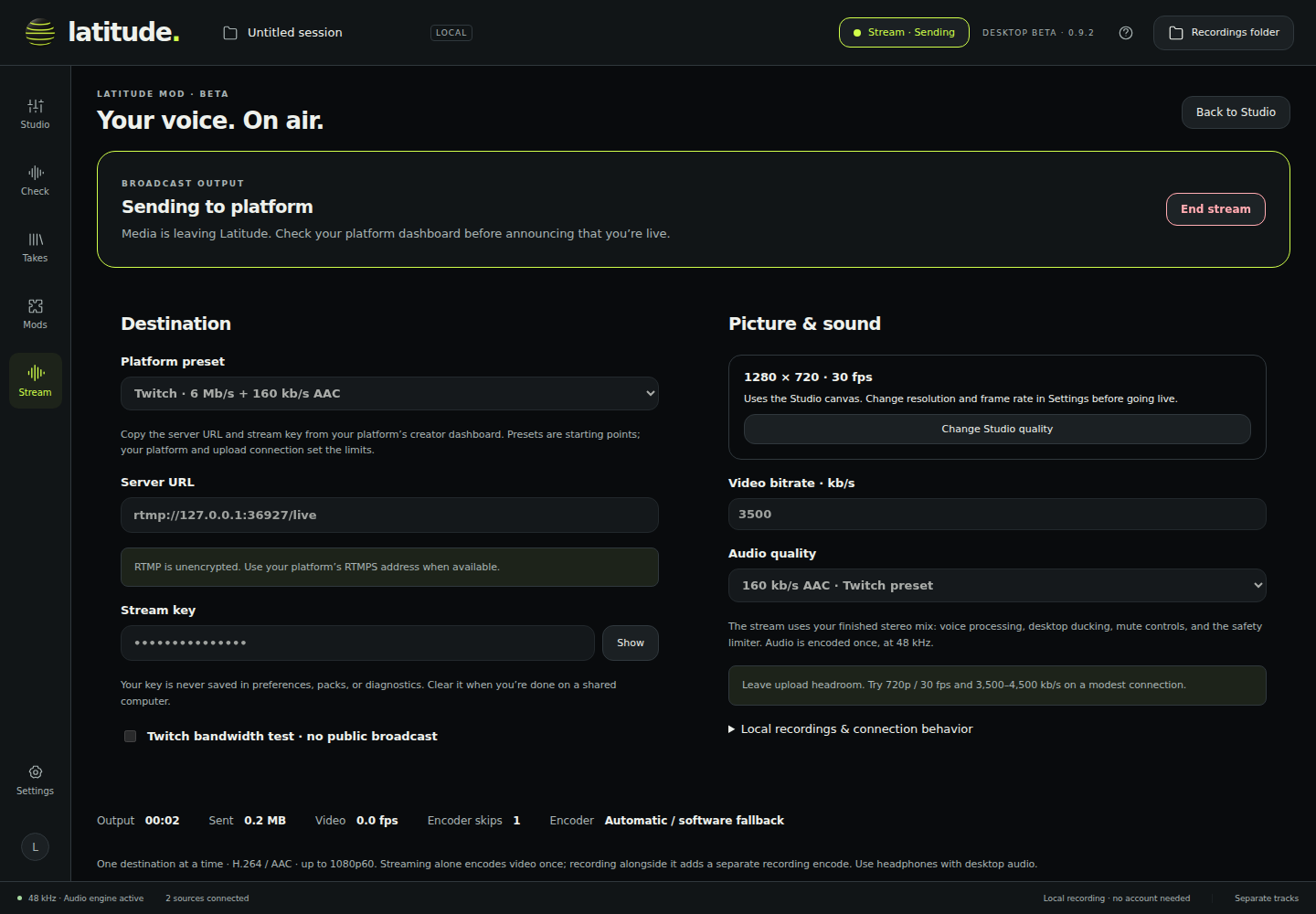
Local RTMP/RTMPS tests pass. Platform delivery and real-world quality still need feedback. Use Twitch’s bandwidth test or YouTube’s private setting before a public show; actual frame rate depends on your hardware and whether you also record. Read the streaming guide ↗
THE SECOND OFFICIAL MOD / EDITOR BETA
Trim a pause. Drop in an intro. Bring the voice forward. Resize the preview and timeline, hide side panels, and keep your layout for the next session—even in a smaller window. Your original recordings stay intact.
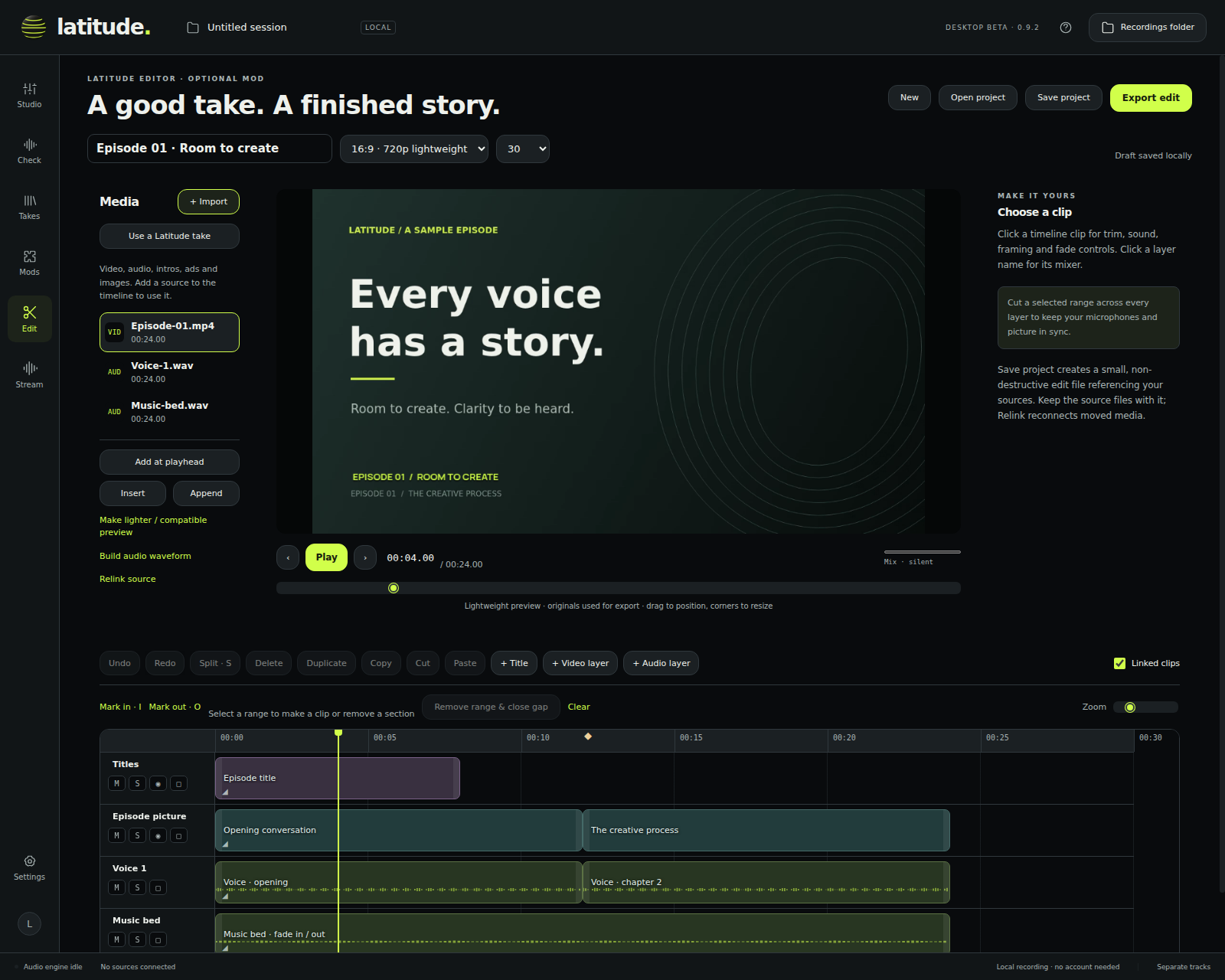
Stack video, audio, images and titles. Insert ads, split linked clips, drag between layers, and remove a section across every track. Undo is close at hand.
Adjust gain, pan and fades. Add gentle dialogue cleanup when needed. Export with podcast loudness matching, separate audio layers and aligned WAV stems.
Crop and reframe, add gradient titles, or use a fade, slide or wipe. Save a reusable project. Export MP4, MKV or audio-only WAV, entirely on your computer.
Enable Latitude Editor in Mods, or choose Edit on a saved take. This is an essentials-first editor beta: no automatic captions, filler-word removal or advanced effects yet. Preview and export quality depend on your media and hardware. Read the editor guide ↗
LET’S MAKE A GREAT TAKE.
Free to try. Open to improve.
Help shape a recorder that puts sound first.
A FEW GOOD QUESTIONS
Yes. Latitude’s application code is MIT-licensed and available on GitHub. Bundled components retain their own licenses. You can inspect the code, report bugs, contribute, or build your own fork.
No. Latitude records locally and saves to your chosen folder without a Latitude account. Optional streaming needs your platform’s server URL and stream key, and transmits only when you start it.
Yes—enable the optional Latitude Streaming mod to send H.264 video and your processed stereo mix to one RTMP/RTMPS destination, up to 1080p60. Keep a local take for separate audio tracks. Latitude Editor is also included for local cuts, layers, titles and audio finishing. VST hosting is not included. Streaming has passed local receiver tests, but real-platform broadcasts and listening quality still need beta feedback.
Latitude keeps its processed mic tracks below a −1.5 dBFS sample ceiling, even with voice processing bypassed. The Input meter watches your original device signal; its red outline clears with the next clean reading while a separate reminder stays until reset. Turn down hardware gain if the input clips. Raw backups preserve that input, and lossy encoding can change peak levels, so no software can promise that every stage is impossible to clip.
Yes. Name your session beside Record or in the top bar, including while recording. Blank names get a date and time. Click a saved take’s title or Rename, or change its name inside Export. After recording lets you choose automatic editing files or Save originals · export later. Your original media stays in place. Version 0.9.5 also removes repeated export work while preserving separate tracks and final loudness checks; finishing time still depends on your hardware and chosen format.
An x86-64 desktop with Flatpak, a working screen-sharing portal on Wayland, and PulseAudio or PipeWire 0.3.65+ with its PulseAudio service. The first install downloads a shared runtime. Latitude is not on Flathub yet. From 0.9.1, the app can check for updates and open a verified Flatpak in your software center; finish the update there and restart. See the Linux setup guide for installation steps and known limits.
Open Apple menu → About This Mac. If it lists an Apple M-series chip, choose Apple Silicon. If it lists an Intel processor, choose Intel Mac. Both require macOS 14.2 or newer. These are unsigned, unnotarized development previews; see the Mac guide for first launch, privacy permissions and remaining test limits.
Windows and Linux builds check once at launch and offer Update now or Skip until next launch. Nothing downloads until you choose. You can also check or turn launch checks off in Settings. Windows installed builds open the verified installer; Linux opens a verified Flatpak in your software center. Windows portable ZIP users replace their extracted app folder. Mac previews update manually: save, quit, and replace Latitude in Applications with the matching new DMG. Install the current release manually once if you have 0.9.0 or earlier. Update guide & privacy.
Make a short recording, try the export in your editor, and tell us what worked or got in your way. Join our Discord to share feedback, ask questions, and get development updates. You can also report a bug on GitHub with your setup and steps to reproduce it. No private recordings are required.
Help shape Latitude.
Feedback & updates on Discord.